

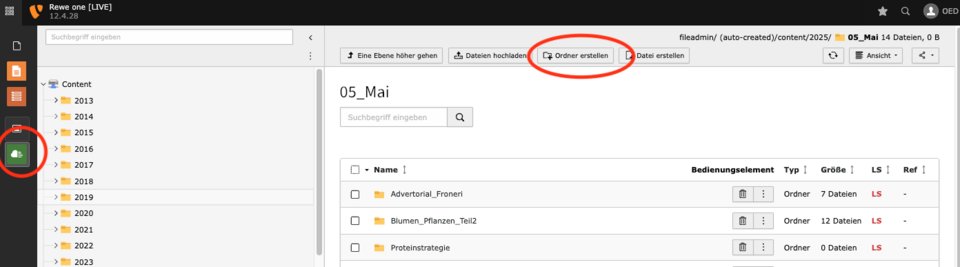
- Create image folder:
Create a new folder in the appropriate place in the folder structure in which only article images are saved. Use a meaningful and comprehensible folder name for this. - Upload images in the correct format:
Teaser images should be uploaded with a minimum size of 2100 x 1570 px, then all teaser types can be cropped to retina size using the cropping tool. The larger the teaser image, the more food for the cut-out in the cropping tool.
If you want to overwrite the teaser images from the cropping tool, then you must upload the correct and exact sizes, please always in retina size.
At the article level there is no cropping tool yet (only the Typo3 one with standard formats), please always upload the correct sizes here.
All image sizes can be found below. - Image size and file format:
The image size of 3000px should not be exceeded. Always save the images optimised for the web. - Note transparencies:
If transparencies are required, the graphics must be saved in PNG format. - Observe the ONE CI:
Colours, fonts etc. should correspond to the ONE CI, exceptions may be possible (series, special formats). - Copyright information within an article
For editorial articles: Each image must be credited.
For picture series or galleries: Collective credit is okay, but clear and visible ("All photos: Max Mustermann").

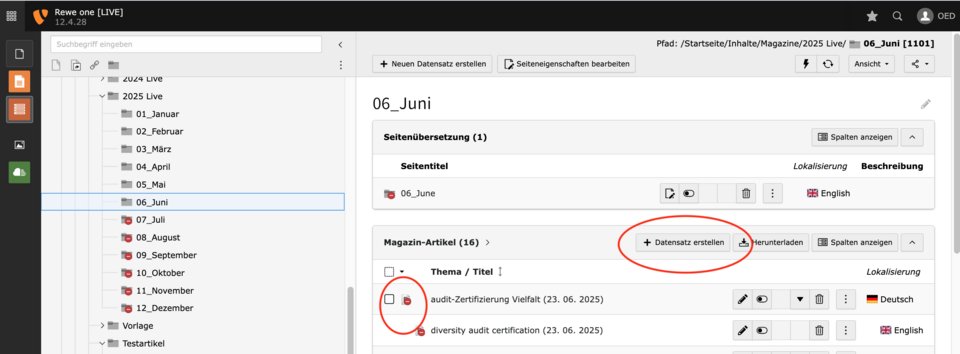
- Create data record
Create a new data record for the article. - Hide access
Under the "Access" tab, tick the "Hide" box so that the article is not initially visible online. This setting is active by default, but should be checked. General settings
Enter the following information under the "General" tab:- Title/topic of the article (if possible based on the folder name for the images)
- URL is generated automatically (no manual intervention necessary, but possible)
- Author (optional)
- Selectfocus topic
- Uploadteaser image [>> Link to the teaser formats]
- Use cropping tool: To ensure that all teaser formats are displayed correctly, the image cropping tool should be used. If this is not sufficient or special cropping is required, the required teaser formats can be uploaded and overwritten separately.
- Setpublication date
NOTE: the URL is automatically generated from the standard teaser headline. If this was not entered the first time it was saved, the CMS generates a cryptic URL.
This can be replaced manually with the circle symbol.
Only then should the article link be sent.
After sending, please do not regenerate the url, otherwise the link will no longer work.
Teaser settings
Standard teaser
- Addheader, headline, teaser text
- The standard teaser can be overwritten individually if the cropping tool does not work
- Mobile teaser image can be overwritten for large magazine teasers (weighting in the mobile view) → please always use the correct format
if not overwritten, the format from the cropping tool that corresponds to the desktop teaser is used:
⅓ Teaser without text for large, ⅓ and ⅔ Teaser without text
⅓ Teaser with text for large, ⅓ and ⅔ teasers with text
Standard → Standard
Series → Series
Magazine teaser
- Selectteaser format for magazine (standard, large, ⅔ teaser, ⅓ teaser, series teaser) →opens detailed setting and text options appear to overwrite the standard teaser entries)
- All teasers can be overwritten individually if the cropping does not work in the cropping tool
- Mobile teaser image can be overwritten for large magazine teasers (weighting in the mobile view) → please always use the correct format
if not overwritten, the format from the cropping tool that corresponds to the desktop teaser is used:
⅓ Teaser without text for large, ⅓ and ⅔ Teaser without text
⅓ Teaser with text for large, ⅓ and ⅔ teasers with text
Standard → Standard
Series → Series - Insertheader, headline, teaser text if necessary
- Teaser text can be shown or hidden
- for ⅔ Teaser: Show text on the right is possible → New format for the magazine
Media centre teaser
- Select teaser format for media centre(series, large, ⅔, ⅓)
- Please pay attention to aspect ratio and image size.
- Please specify the duration of the video so that readers know what they are getting into
- Please specify whether it is a video or a podcast so that the correct icon is displayed for readers
Newsletter teaser
- Optional: Overwrite the teaser for the newsletter if a different motif is desired.
- If required, the header, headline and text of the standard teaser can be overwritten individually for the newsletter.
- please do not regenerate newsletter teasers in the cropping tool or upload them again after the newsletter has been sent
Select categories, SBU and tags
So that the article appears in the categories or can be listed according to keywords:
- Please select the appropriate category and SBU in the drop-down menu!
- Please select relevant, already existing keywords/tags from the default!
Comment function
If required, the comment function can be switched off for each article under the "User" tab, e.g. for competitions, advertorials
- Modules with layout options can be added to the article in the "Modules" tab.
- The article should always start with an image or video module
- Different modules offer design options for the content:
Please provide a rough description of the modules and their use here! - The modules with background colour have a selection option for the Rewe colours so that we remain in the REWE CI.
However, individual colours are possible depending on your design requirements.
- The "Save" and "Close" buttons are located at the top right.
Save the article regularly to avoid data loss.
- TYPO3 automatically creates an English version of the article with DeepL.
- The cropping tool must be fed with teasers before the first saving / initial translation so that these are adopted.
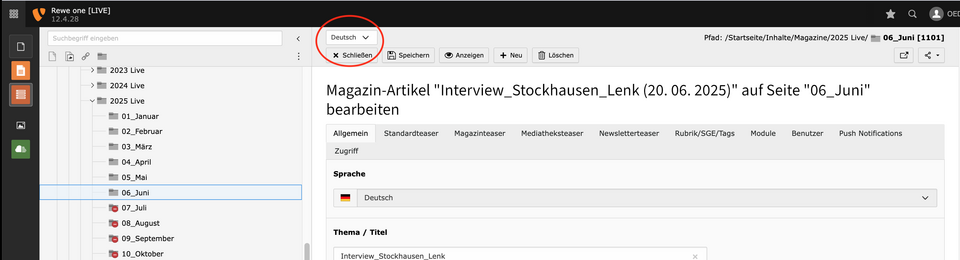
- You can switch to the English version at any time using the language drop-down menu at the top left and make changes there.
- This changed content will not be overwritten when the article is saved again.
- New modules in the English article are deleted again when changes are made in the German article (article sync).
Check content:
- Check texts for correctness and comprehensibility
- Replaceteasers with German texts with English teasers
- Replacegraphics with German texts with English graphics
- When using videos in the article, the note "Some contents may appear in German language" is automatically displayed
- If you want to insert a video with English subtitles or synchronised, you can change the module in the English article or the video url in the video module.
Hints
- Teasers from the cropping tool are adopted in the initial translation, but then not overwritten when saved, so that you can upload your own English versions of teasers.
- Video urls in the video modules are translated into English once, you can edit them there and enter the English urls, after which they are no longer overwritten / translated when changes are made.
- If you want to get the original, first translation of the article again, you can delete the English article and then have it translated again with DeepL. All German content/media will then be translated and must be overwritten again in the English article if necessary.
If it is a series article or thematically related content, the "Cross-linking" module should be added.
- You should regularly ensure that the browser cache and the TYPO3 cache are cleared so that changes are displayed.
- You should regularly ensure that inappropriate comments are deleted.
- The URL should not be updated afterwards if it has been sent to someone for approval → the link will then no longer work.
- The English folders for page titles must be fully translated and active. This must be checked regularly.
- Comments should be switched off
- Advertorials should be labelled with " +++ADVERTISEMENT +++" in the headline
- The English version must be deleted
The URL for advertorials should be marked for tracking with the ending "_advertorial".